Panel notifications (iContact messages)
Overview
Besides the event notifications that the server sends by itself, Imunify delivers generic panel notifications (also referred to as iContact messages) through the hosting panel's own notification mechanism:
- cPanel/WHM: delivered via cPanel iContact (WHM → Contact Manager)
- Plesk: delivered by the Imunify Plesk extension via Plesk Notifications (Tools & Settings → Notifications / Notification Center)
The two channels are entirely separate, and the difference matters when you are deciding where to look for a missing message:
| Event notifications | Panel notifications | |
|---|---|---|
| Generated by | the server, from its own events | the Imunify cloud, from telemetry the server uploads |
| Delivered by | the local MTA, or your script | the hosting panel |
| Configured in | Settings → Notifications (per event), notifications-config | Settings → Notifications → Panel notifications (per message type), config update |
| Default state | off, except the malware hook the agent installs on Plesk | everything on |
| Timing | immediately for scan events; five minutes or more for the aggregated real-time and Proactive Defense events | up to a day after the event |
| Available on | any supported panel | cPanel/WHM and Plesk only |
Note
Panel notifications are produced only when the control panel is cPanel/WHM or Plesk. On any other panel, and in stand-alone mode, the agent does not request them and the Panel notifications row is not shown in the UI.
How they are produced and delivered
- The agent uploads server telemetry (scan results, detected applications, configuration) to the Imunify cloud.
- The cloud evaluates that telemetry and prepares a notification with a ready-made subject and HTML body, together with a period limit for that message type.
- The agent asks the cloud for pending notifications no more than once every 24 hours.
- Before delivering, the agent applies the period limit it received, so the same message type is not repeated more often than the cloud allows.
- The message is handed to cPanel iContact or to the Plesk Notification Center, which decides the actual recipients and channels.
Two consequences follow from this design and account for most support questions:
- There is no "send me a test notification" action. The content is generated in the cloud, not on the server, so it cannot be triggered locally.
- A configuration change is not reflected immediately. It reaches the cloud with the next telemetry upload, the cloud evaluates telemetry from the last few days, and the server asks for messages once a day — so a change can take more than a day to show, in either direction.
Message types
Eight message types have a switch of their own. Seven of them are addressed to ImunifyAV and ImunifyAV+ servers and are never generated for an Imunify360 server; the only type that applies to every product is Vulnerable scanner version. Each type has its own cooldown, and all but one pair are generated independently — the two WordPress core types are mutually exclusive, see below.
| UI label | Configuration key | Sent when | Cooldown | Scope |
|---|---|---|---|---|
| Malware found | malware_found | a user or background scan found malicious files on the server within the last 24 hours | 24 hours | ImunifyAV / ImunifyAV+ only; agent 6.7 or later |
| Malware detected on websites | malware_detected | the website URL scan found malware on one of the sites hosted on the server | 24 hours | ImunifyAV / ImunifyAV+ only |
| Malicious redirect detected | malicious_redirect_detected | a malicious redirect was detected on a website | 24 hours | ImunifyAV / ImunifyAV+ only |
| Vulnerable scanner version | aibolit_vulnerable | the installed AI-Bolit scanner component is older than 32.7.4 and has a known vulnerability; updating Imunify brings the fixed version | 24 hours | all products, Imunify360 included |
| Insecure WordPress version | insecure_wp_core | an installed WordPress core has known vulnerabilities. Takes precedence over outdated_wp_core for the same server | 7 days | ImunifyAV / ImunifyAV+ only |
| Outdated WordPress version | outdated_wp_core | an installed WordPress core version is outdated and the server does not already qualify for the insecure-version message | 7 days | ImunifyAV / ImunifyAV+ only |
| Malware scan is not scheduled | scan_not_scheduled | MALWARE_SCAN_SCHEDULE.interval is set to none and no user or background scan has run in the last 30 days | 7 days | ImunifyAV / ImunifyAV+ only; agent 6.7 or later |
| Outdated or vulnerable WordPress plugins and themes | wordpress_themes_and_plugins | an installed WordPress plugin or theme has a newer version available, or has known vulnerabilities. The message lists up to five of them with their paths, and says how many more were found | 7 days | ImunifyAV / ImunifyAV+ only; see the note on versions below |
The two WordPress core types never arrive together
When a server qualifies for Insecure WordPress version, the cloud drops Outdated WordPress version for that server in the same run, even though both switches are on. A vulnerable core is also an old core, and the insecure message already tells the administrator to update, so sending both would be redundant. One insecure installation is enough to suppress the outdated message for the whole server, not just for that one site. Switch insecure_wp_core off and the outdated message is generated as usual.
Outdated or vulnerable WordPress plugins and themes is not part of this pair: it covers plugins and themes rather than the core, and is generated independently of both core types.
Note
These eight are not the only messages that arrive through this channel. The Imunify cloud also sends, for example, a warning when the agent version is outdated, PCI compliance notices, or a report about compromised accounts. Those have no individual switch and are governed by the master switch alone — turning all eight types off is not the same as turning panel notifications off.
Important
The seven ImunifyAV / ImunifyAV+ types are never generated for an Imunify360 server, whatever their switches say. Malware found in particular is an upgrade prompt addressed to ImunifyAV and ImunifyAV+ administrators — Imunify360 already includes everything the message recommends.
If you run Imunify360 and want an email whenever a scan finds malware, that is what event notifications are for: enable the ADMIN target on USER_SCAN_MALWARE_FOUND (scheduled and user scans), CUSTOM_SCAN_MALWARE_FOUND (on-demand scans) and REALTIME_MALWARE_FOUND (uploads).
Choosing which message types to receive
Go to Settings → Notifications and click Manage panel notifications in the Panel notifications row. The dialog lists only the message types your product can receive, so it looks different on the two products.
On ImunifyAV / ImunifyAV+
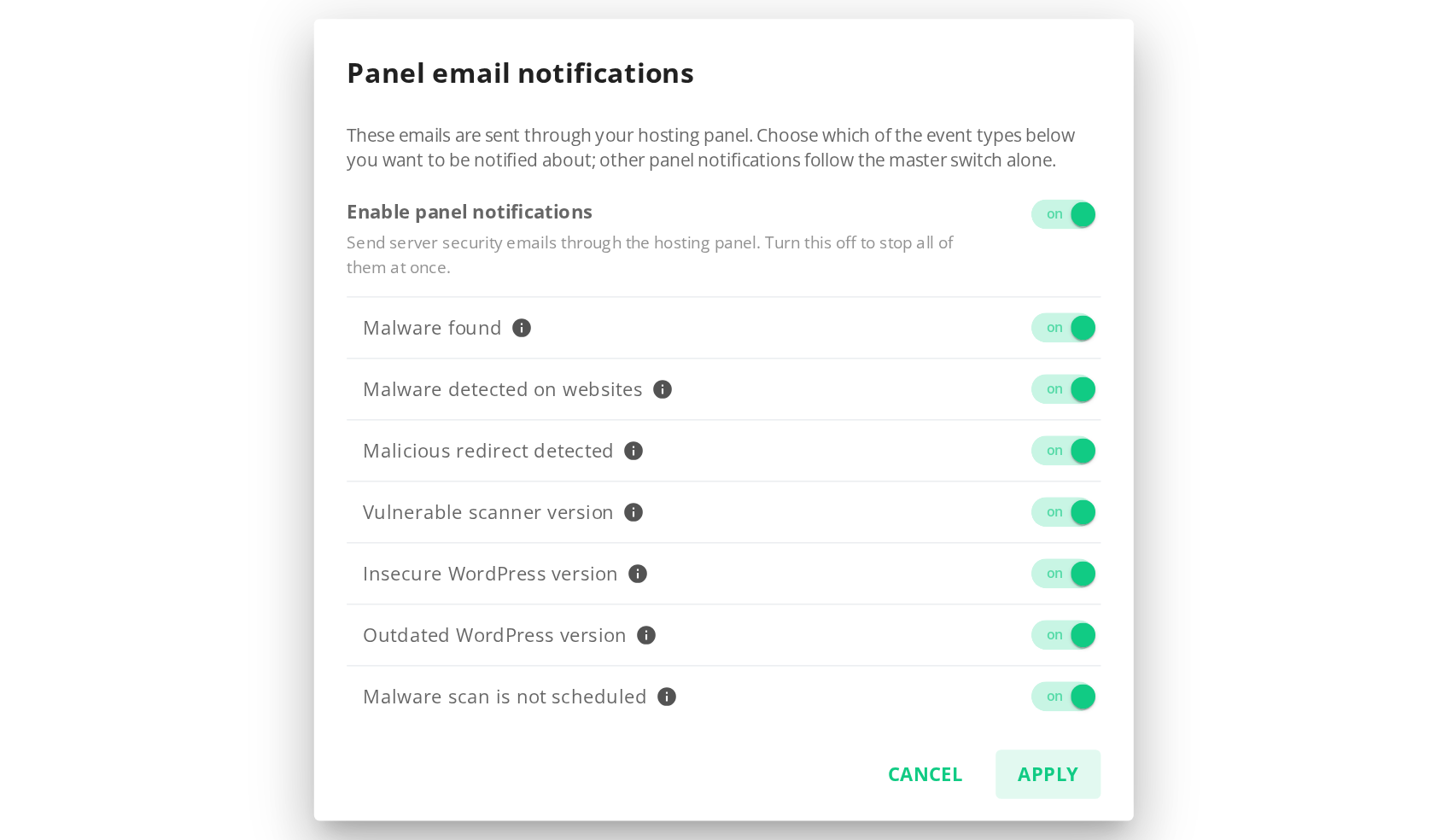
- Enable panel notifications is the master switch. Turning it off stops all panel notifications at once and greys out the individual types, which keep their own values.
- Each of the eight types has its own toggle. All of them are on by default.
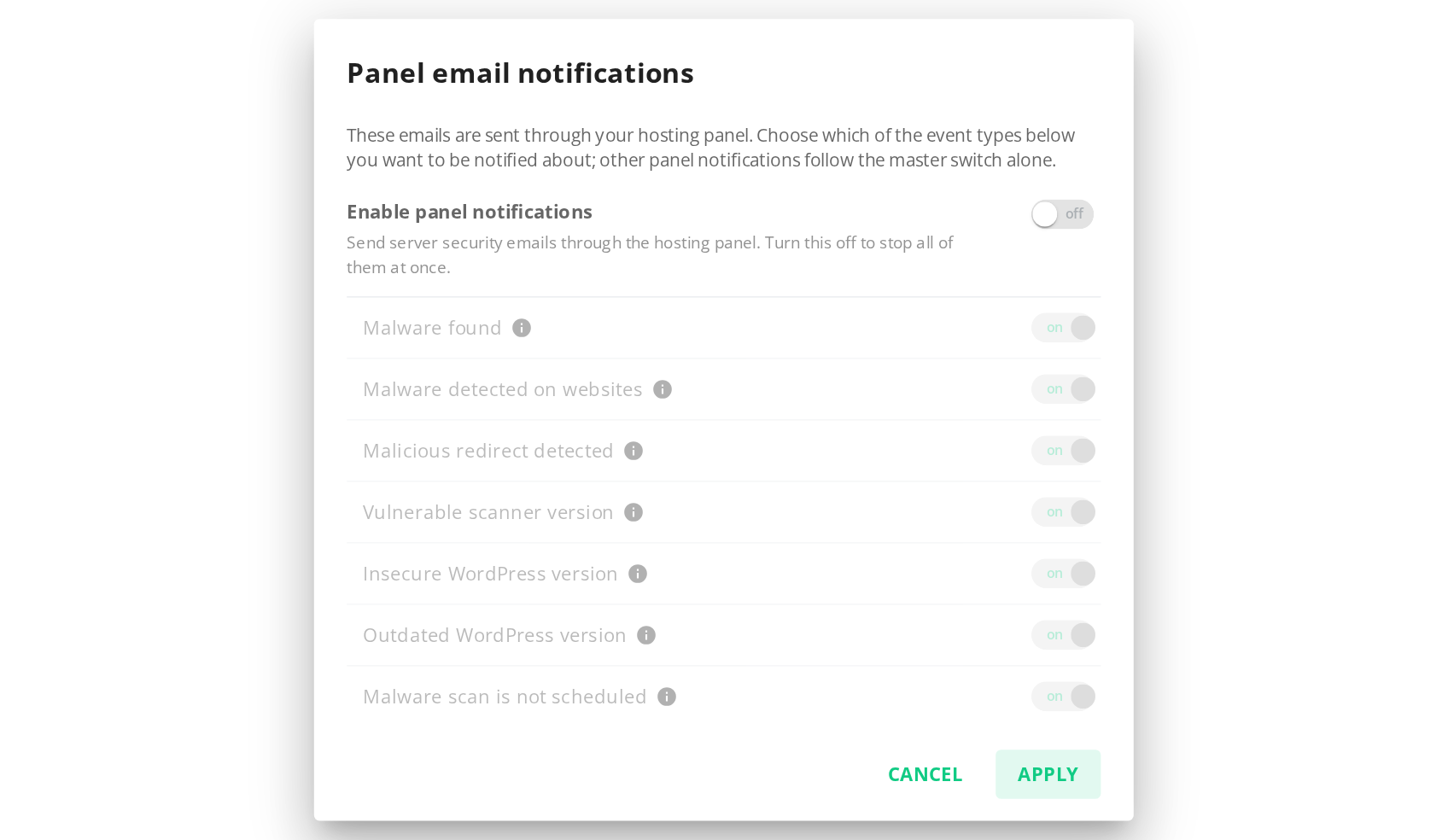
On Imunify360
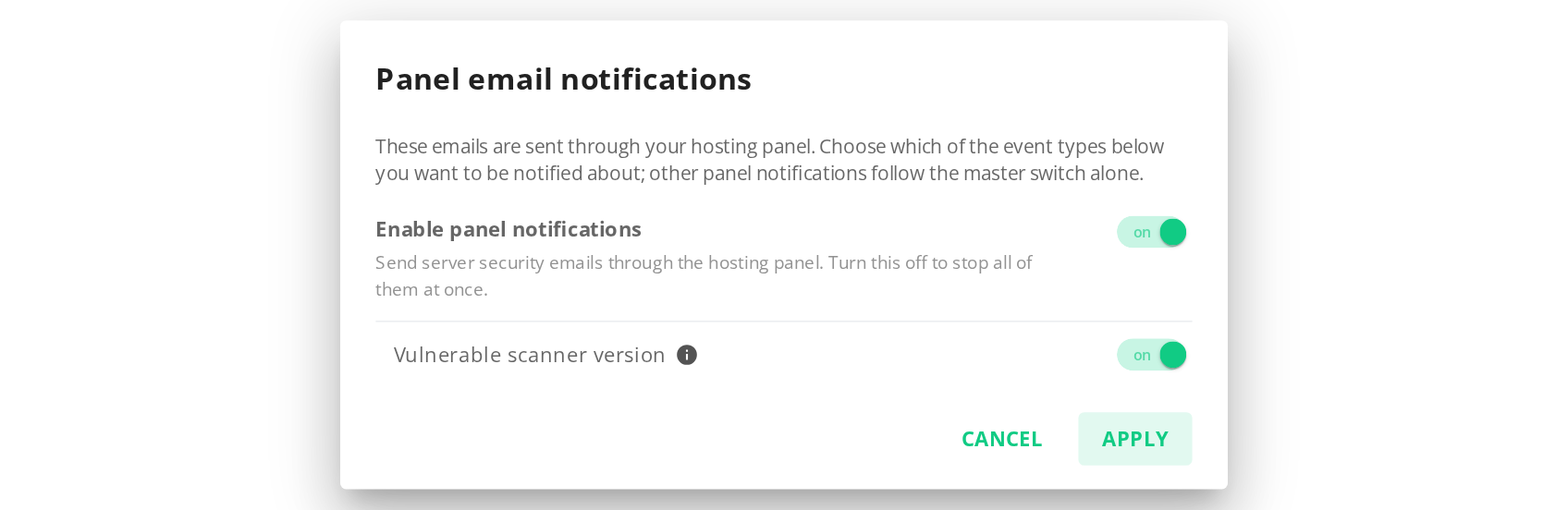
On Imunify360 the dialog offers the master switch and a single type, Vulnerable scanner version. The other seven messages are addressed to ImunifyAV / ImunifyAV+ servers and are never generated for Imunify360, so their switches are not shown. The master switch is still the control that matters here: it governs every message that has no switch of its own — the outdated agent version warning, PCI compliance notices, the compromised accounts report and the like. Turning it off silences all of them; turning Vulnerable scanner version off silences that one message only.
The hidden types are not dropped from the configuration: DASHBOARD.notifications keeps the same keys on every product, and the dialog saves the ones it does not show unchanged.
Click Apply to save. The dialog writes both ADMIN_CONTACTS.enable_icontact_notifications (the master switch) and DASHBOARD.notifications (the individual types) in a single configuration update.
Note
The dialog ships with Imunify UI 8.13.1; the configuration keys behind it come with imunify-antivirus 8.8.2 (the antivirus component is part of both products). Imunify UI 8.13.1 lists all seven types on both products; the product-specific list described above ships with Imunify UI 8.13.2. The Panel notifications row appears only when both conditions hold: the control panel is cPanel/WHM or Plesk, and the agent reports a DASHBOARD.notifications section in its configuration. If the row is missing on a cPanel or Plesk server, check both versions; the agent side can be verified with:
imunify360-agent config show | grep -A8 DASHBOARD
Outdated or vulnerable WordPress plugins and themes is newer: its configuration key comes with imunify-antivirus 8.9.2 and its switch with Imunify UI 8.13.3. The dialog offers a switch only for the types the agent reports in DASHBOARD.notifications, so with an older agent it keeps listing the other seven and leaves this type out of what it saves.
Configuration keys
Panel notifications are controlled by three keys in /etc/sysconfig/imunify360/imunify360.config (or a file in /etc/sysconfig/imunify360/imunify360.config.d/):
| Key | Default | Effect |
|---|---|---|
ADMIN_CONTACTS.enable_icontact_notifications | True | master switch for delivering generic messages through the panel |
DASHBOARD.notifications.<type> | True | whether the cloud generates this message type for this server; a type outside the product's scope is never generated, whatever the value |
CONTROL_PANEL.generic_user_notifications | True | whether user-targeted messages may be delivered to panel end users |
In YAML
ADMIN_CONTACTS:
  enable_icontact_notifications: True
DASHBOARD:
  notifications:
    malware_found: True
    malware_detected: True
    malicious_redirect_detected: True
    aibolit_vulnerable: True
    insecure_wp_core: True
    outdated_wp_core: True
    scan_not_scheduled: True
    wordpress_themes_and_plugins: True
Via CLI
Turn everything off (Imunify360):
imunify360-agent config update '{"ADMIN_CONTACTS": {"enable_icontact_notifications": false}}'
Turn off the one type Imunify360 receives and keep the rest of the channel:
imunify360-agent config update '{"DASHBOARD": {"notifications": {"aibolit_vulnerable": false}}}'
The same commands on ImunifyAV/AV+ use the imunify-antivirus binary; there all eight types apply, so any of them can be switched off:
imunify-antivirus config update '{"DASHBOARD": {"notifications": {"outdated_wp_core": false, "insecure_wp_core": false}}}'
Note
Turning a type off in DASHBOARD.notifications stops the message at the source: the cloud stops generating it for this server as soon as the change reaches the cloud. Because the change travels with the next telemetry upload and the cloud query looks back two days, a message that was already prepared can still arrive shortly after you disable the type.
Disabling user-targeted delivery
If these notifications should go only to the server administrator and never to end users, disable CONTROL_PANEL.generic_user_notifications.
Imunify360 (global):
imunify360-agent config update '{"CONTROL_PANEL": {"generic_user_notifications": false}}'
Imunify360 (for a specific user):
imunify360-agent config update '{"CONTROL_PANEL": {"generic_user_notifications": false}}' --user <username>
ImunifyAV/AV+:
imunify-antivirus config update '{"CONTROL_PANEL": {"generic_user_notifications": false}}'
Who receives these messages
A notification is addressed either:
- to the server administrator (panel admin) — when no specific user is provided, or
- to a specific panel user (customer/reseller) — when a target user login is provided.
User-targeted delivery is controlled by CONTROL_PANEL.generic_user_notifications (default: True). The final recipients and channels are then decided by the panel: WHM Contact Manager on cPanel, Tools & Settings → Notifications on Plesk.
Licensing
Panel notifications do not require an additional add-on license. They are controlled by a configuration option and are available on supported panels where the delivery channel exists (cPanel/WHM, Plesk).
Requirements
- Imunify360 or ImunifyAV/AV+ installed and running, with an activated license (the agent needs its cloud identity to request notifications).
- For Plesk delivery: Plesk installed, and the Imunify extension installed/enabled in Plesk.
- For cPanel delivery: cPanel/WHM installed, and WHM Contact Manager configured with at least one destination.
Plesk: managing delivery with Plesk Notifications
When Imunify runs under Plesk, it relies on the Imunify Plesk extension to dispatch these messages via Plesk notifications.
- Where you see it: in Plesk's Notification Center, and/or as emails depending on your Plesk notification settings.
- Where you configure delivery: Plesk → Tools & Settings → Notifications (choose recipients and optionally add a custom email address).
Note
On Plesk, the agent also registers a script hook of its own — /opt/imunify360/venv/share/imunify360/scripts/send-notifications — on the CUSTOM_SCAN_MALWARE_FOUND, USER_SCAN_MALWARE_FOUND and REALTIME_MALWARE_FOUND events, so that malware notifications reach Plesk administrators and their customers through the Notification Center. This hook is part of the event-notification channel, and it is not affected by ADMIN_CONTACTS.enable_icontact_notifications: setting that key to false stops the generic cloud messages but malware notifications continue to be delivered through Plesk. To stop those as well, disable the corresponding events with notifications-config.
Note
A Plesk customer who has no contact email address in Plesk will not receive the notification addressed to them, and nothing is reported to the administrator — Plesk records Email address '' is invalid in /var/log/plesk/panel.log while the hook itself exits successfully. If customers report missing notifications, verify that their Plesk accounts have an email address.
Manual test (advanced)
On a server with the Imunify extension installed, run:
echo '{"message_type":"Generic","params":{"subject":"Test Generic","body_html":"<p>Hello from Imunify</p>"},"user":"client_login"}' | sudo /opt/imunify360/venv/share/imunify360/scripts/send-notifications
Payload fields:
message_type: must beGenericparams.subject: notification subjectparams.body_html: HTML body (preferred)params.body/params.text: plain-text fallback (optional)user: Plesk login to receive the message (optional). If omitted, the Admin user is used.
This verifies the Plesk delivery path only; it does not exercise the cloud side.
Plesk CLI (optional)
Plesk email notification settings can also be managed via plesk bin notification. See: How to manage Plesk email notifications via CLI.
We recommend sending security-related Imunify notifications to the server administrator (or a dedicated security mailbox) and not to end customers unless you have a clear operational process in place.
cPanel/WHM: delivery via iContact
On cPanel/WHM, Imunify uses cPanel's iContact system. To manage recipients and channels, use:
- WHM → Home → Server Contacts → Contact Manager
Make sure at least one destination (email/SMS/etc.) is configured there. Imunify only controls whether these messages are generated and handed over; delivery is handled by cPanel.
Troubleshooting
Check what is actually enabled on the server.
imunify360-agent config show | grep -A8 DASHBOARD
imunify360-agent config show | grep -A3 ADMIN_CONTACTS
See what the agent handed to the panel. Each message the agent passes to cPanel or Plesk is logged to /var/log/imunify360/console.log with its subject and body:
grep -E "cPanel.notify|Plesk.notify" /var/log/imunify360/console.log | tail
These lines are written before the panel handler runs, so they show that a message reached the server and was handed over — not that the panel delivered it. On Plesk the extension records the outcome in /usr/local/psa/var/modules/imunify360/imunify360-local.log (Notification with subject "…" was sent to …) and Plesk reports recipient problems in /var/log/plesk/panel.log; on cPanel the message is handed to iContact, which applies the Contact Manager settings.
Nothing can be triggered from the server. The messages are generated in the cloud from uploaded telemetry, on the cloud's schedule. If the condition behind a type is present and the type is on, expect the message within the next daily poll; if it does not come, the usual reasons are the type's cooldown, the product scope in the table above, or telemetry that has not been uploaded yet. A missing Outdated WordPress version message has one more possible cause: the server also qualifies for Insecure WordPress version, which suppresses it.